
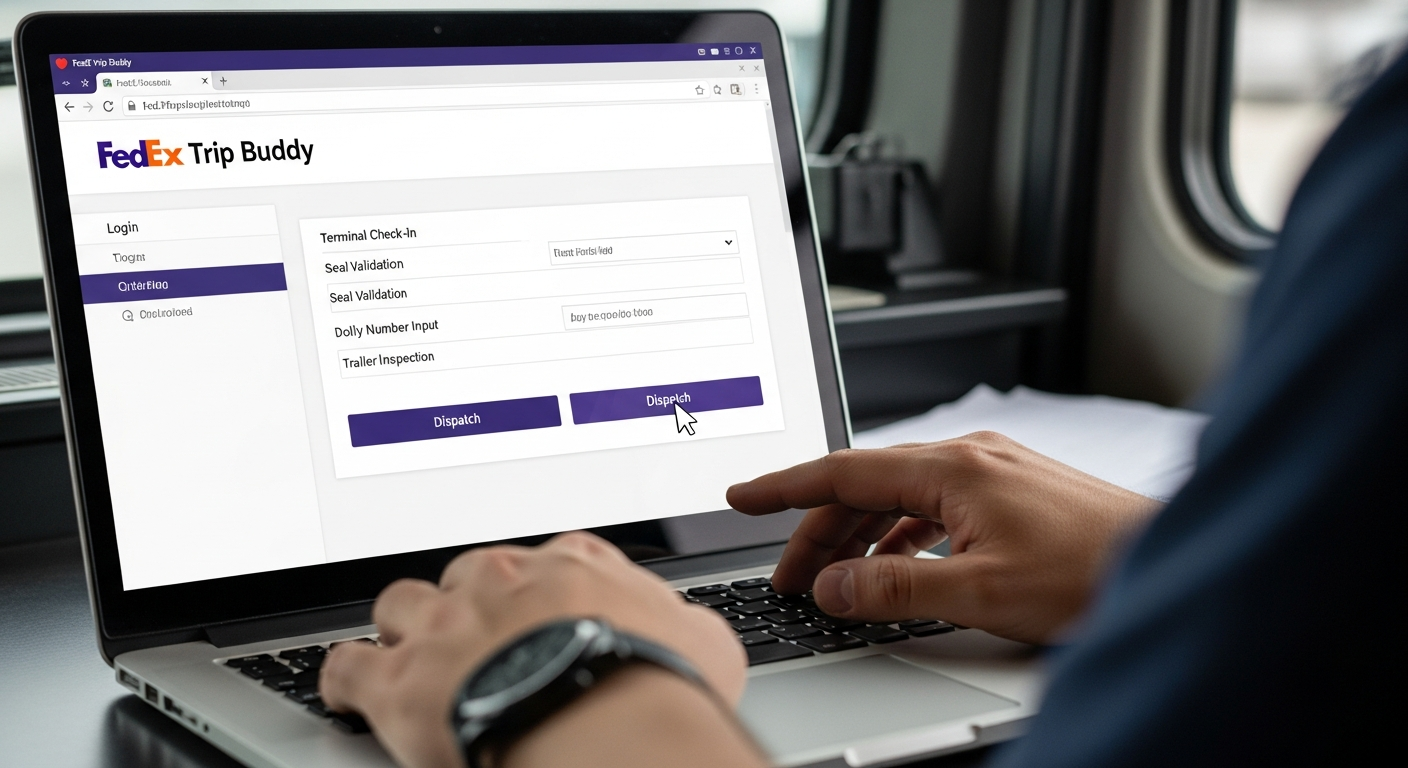
FedEx Trip Buddy is the browser-based system every FedEx Ground linehaul driver ends up staring at. You log in, check in at terminals, validate seals, punch in dolly numbers, inspect the trailer, and dispatch yourself. No middleman. No waiting on the phone half the night. Sounds simple. Sometimes it is. Sometimes it feels like FedEx coded it on a dare.
If you run doubles, pups, or straight trucks across terminals, you already know FedEx Trip Buddy. If you’re new, this is the thing that turns a smooth relay into a 45-minute headache at 2 a.m. I’ve used it on I-70 when the app froze at the state line, on I-40 when the map showed my trailer in the wrong yard, and on plenty of nights when it actually worked and I was rolling in under 20 minutes. Here’s the real talk—no fluff, no corporate speak.
What Exactly Is FedEx Trip Buddy?
It’s not a phone app you download from the store. It lives inside fdxtools.fedex.com. Think of it as FedEx’s private dispatch portal for linehaul contractors. You get a load assignment (usually a phone call or text), open Trip Buddy, arrive at the terminal, hook the trailer, inspect everything, and click dispatch. Boom—you’re legal and on the clock.
The system tracks arrival times, seal numbers, dolly info, trailer weights, and your check-out. It feeds data straight back to FedEx so they know average stop times, traffic patterns, and who’s actually getting trailers out fast. That data matters for your contractor score, future runs, and whether dispatch starts calling you first or last.
How to Log In Without Losing Your Mind
- Go to fdxtools.fedex.com (bookmark it—don’t search every time).
- Use your FedEx user ID and the temporary password they emailed you the first time.
- Change the password immediately or it’ll kick you out later.
- If it asks for a security code, check your phone or email—FedEx loves two-factor at the worst moments.
Pro move: Use Firefox. A lot of drivers swear Chrome makes the page glitchy—fields don’t save, buttons freeze. Switch browsers and half your headaches vanish.
The Home Screen – What You’re Actually Looking At
Once you’re in, you’ll see “Continue to Home.” Click it. Now you’ve got buttons: Arrive, Begin New Check-In, View Trailers, Map, Dispatch, etc. Everything flows from here.
- Arrive → enter trailer or load reference number
- Begin New Check-In → tell it you’re hooking up
- Trailer map → sometimes accurate, sometimes shows your pup in Ohio when you’re in Texas (use it anyway, just don’t trust it 100%)
Step-by-Step: Arriving, Hooking, and Inspecting Like You Know What You’re Doing
You pull into the terminal. Open Trip Buddy.
- Hit “Arrive.”
- Punch in the trailer number or tracking reference they gave you.
- Hit Arrive again. Green check = you’re officially there.
Next: Begin New Check-In.
Select your tractor and the trailer(s).
Enter dolly number if you’re running doubles.
Validate the seal number—double-check it matches the physical seal.
Run your inspection (lights, tires, brakes, securement).
Agree to the check-out statements.
Hit Dispatch.
If everything is clean, you’re rolling in under 10 minutes. I’ve done it so fast the yard guy was still walking over with the paperwork.
One night in Memphis I hooked a pup that had a broken gladhand. Caught it in the app inspection. Fixed it in five minutes instead of discovering it 200 miles later at 3 a.m. That’s the kind of win that keeps you from hating the tool.
Self-Dispatch Magic (and When It Bites You)
The best part: you dispatch yourself. No waiting for a coordinator to type your load into the system. You finish inspection, click dispatch, and the clock starts. If you don’t leave within 20 minutes, dispatch usually calls to check on you—nice safety net.
The worst part: sometimes the load doesn’t show up in Trip Buddy even though they called you with it. Then you’re on the phone anyway. Or the seal field won’t accept the number. Or it logs you out mid-inspection. That’s when you start cursing in the cab.
Common Bugs That Still Exist in 2026
- Map shows wrong yard location
- “Invalid seal” error when the seal is clearly fine
- Page freezes after entering dolly number (Firefox usually fixes)
- Load assignment missing even though dispatch called
- Random logout after 15 minutes of inactivity
Workarounds drivers actually use: screenshot everything, keep a notepad with reference numbers, call the terminal dispatch number if Trip Buddy ghosts you, and always arrive 10 minutes early so you have buffer.
Real Driver Stories That Sound Too Familiar
A buddy of mine in Dallas got a load assignment at 1 a.m. Trip Buddy wouldn’t let him arrive—kept saying “reference number not found.” He called dispatch, they confirmed the load, he still couldn’t check in. Ended up sitting 45 minutes while they fixed it on their end. He missed his relay window and ate detention. Lesson: screenshot the text dispatch message every single time.
Another time I was in Indianapolis. App said my trailer was loaded and ready. Walked out—empty. Map was wrong, system was wrong, but my eyes weren’t. Always do a physical walk-around before you trust the screen.
Tips That Actually Save Time and Headaches
- Keep the Trip Buddy tab open in a separate browser window on your phone (use desktop mode).
- Save your most-used terminal reference numbers in your notes app.
- Take photos of every seal before you break it.
- If the app acts drunk, close the tab completely and reopen—fixes 70% of glitches.
- Run your inspection checklist on paper first, then enter it. Less chance of fat-fingering at night.
- Update your browser and clear cache once a month. Sounds dumb until it stops the random crashes.
Why FedEx Still Uses This Instead of a Real App
Everyone asks this. It’s web-based so they can push updates without app store approval. It works on any device. And honestly, for the price of building and maintaining a native app for thousands of contractors, this cheap browser portal gets the job done… most days.
But yeah, a real app with offline mode and better map integration would be nice. Until then, we make Trip Buddy work.
Wrapping It Up – Make Peace With the Tool
FedEx Trip Buddy isn’t going anywhere. It’s the gatekeeper between you sitting in the yard and you earning miles. Learn its quirks, keep a couple workarounds in your back pocket, and it becomes just another tool—like your headache lights or your backup camera.
Treat it like a grumpy but useful co-driver. Feed it good data, double-check everything, and it’ll usually get you out the gate faster than the old way.
Drive safe. Dispatch yourself clean. And if the app freezes tonight—try Firefox first.
5 Google-Optimized FAQs
1. How do I log into FedEx Trip Buddy?
Go to fdxtools.fedex.com, enter your FedEx user ID and password. Use Firefox if the page glitches. Change your temp password right away.
2. What is FedEx Trip Buddy used for?
Linehaul drivers use it to arrive at terminals, perform trailer inspections, validate seals, enter dolly numbers, and self-dispatch loads without waiting on a coordinator.
3. Why does FedEx Trip Buddy keep freezing?
Common with Chrome. Switch to Firefox, clear cache, or close/reopen the tab. It’s a known driver complaint for years.
4. Can I use FedEx Trip Buddy on my phone?
Yes, but desktop mode works better. The interface is designed for larger screens. Many drivers keep a laptop or tablet in the truck.
5. What happens if I can’t dispatch in FedEx Trip Buddy?
Call the terminal linehaul number immediately. Sometimes the load isn’t showing on their end either. Screenshot everything for your records.
References & Real Sources
- FedEx internal tool access: fdxtools.fedex.com
- Driver discussions: r/Fedexers (multiple threads 2023–2025)
- Linehaul forum explanations: TheTruckersReport.com (JohnBoy threads)
- YouTube walkthroughs by active FedEx Ground contractors (2021–2025 videos still accurate on core flow)